
Index
- Introduction
- Account Creation
- Activation
- User Panel
- Power BI Setup
- Power BI Template
- How to Uninstall the app
- Beta API's
- Opt-In Tables
- Data Sync
- Data Security
- Common Power BI Issues
Introduction
The Datawarehouse.io Power BI Connector enables analysts and business leaders to easily connect data from sources such as HubSpot, Google Ads, and more to Power BI, replacing manual spreadsheets with direct data syncs to Azure SQL. This solution supports full data synchronization and schema replication, giving you fast, reliable access to fresh CRM data for advanced analytics, reporting, and dashboard creation.
Account Creation
- Create an account at app.datawarehouse.io
- Select the Power BI Connector on the dashboard or in the left-hand menu.
- Click the Start Free Trial button.
- You will be re-directed to a page labeled Select Initial Data Source. Here, you will select which data source to link to the Connector app.
- Select the refresh rate that you want your data to sync into Power BI.
- You are then re-directed to the checkout screen. Please fill out all required information in order to activate your service.
- Success! You are all signed up and can now visit the Power BI Connector section of the app to view your connector details.
- Continue to the Power BI Connector Setup Guide for how to plug the app into a Power BI instance.
Activation
Once you have successfully signed up, we will activate your app. Upon activation an email with your Connector details will be sent to you. You can also retrieve them from the User Panel.
User Panel
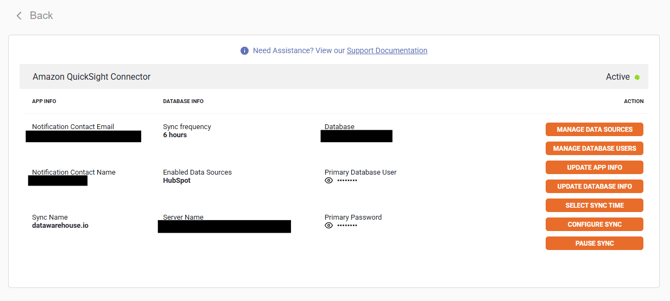
You can visit the User Panel to perform the following self service administrative actions for your Connector database.
Below are the primary functions of the selections found in your user panel:
- Manage Data Sources
- You can add and manage additional data sources such as LinkedIn Ads and Google Ads to be included in the Connector dataset (see Manage Data Sources subsection below form more details).
- Manage Database Users
- You can add and manage additional database users by clicking on and using this feature here (see Manage Database Users subsection below for more details).
- Configure Sync
- You can set up the sync to only sync over the data you need using this feature by removing specific tables and fields/columns from the sync (see Sync Configuration subsection below for more details).
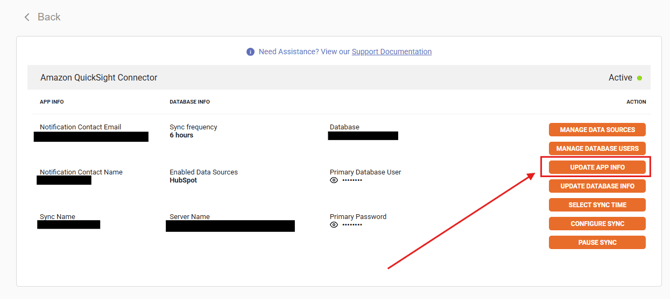
- Update App Info
- You can assign/reassign the primary user of the database by clicking on this button and making the necessary adjustments by inputting the information in the pop-up window as shown in the example below.
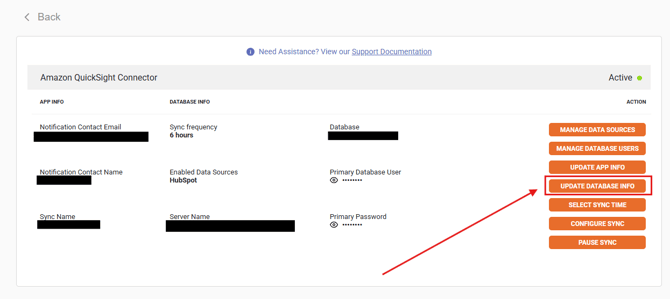
- Update Database Info
- You can change the name of the database and the primary username of the database here.
-
Pause Sync
- You can pause and un-pause the sync at any time using this feature.
- Please note: This does not pause the billing for your subscription. It only pauses the sync between your data sources and your Connector database.
- You can pause and un-pause the sync at any time using this feature.
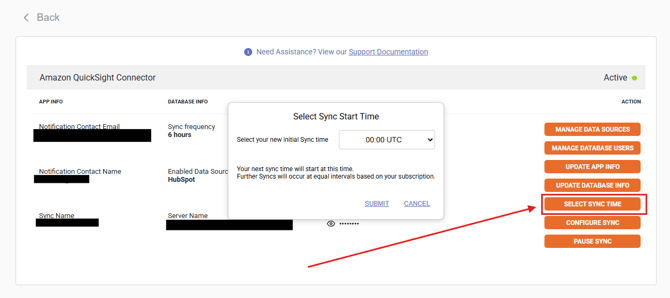
- Select Sync Time
- Here, you can adjust your sync times as needed by opening the interface as shown in the example below.
- Please note: This feature is only available to users on the 6-hour refresh rate plan or higher. To learn how to upgrade your subscription, please review the following documentation linked here.
- Here, you can adjust your sync times as needed by opening the interface as shown in the example below.
How to access the user panel
To access the user panel, please review the following instructions:
-
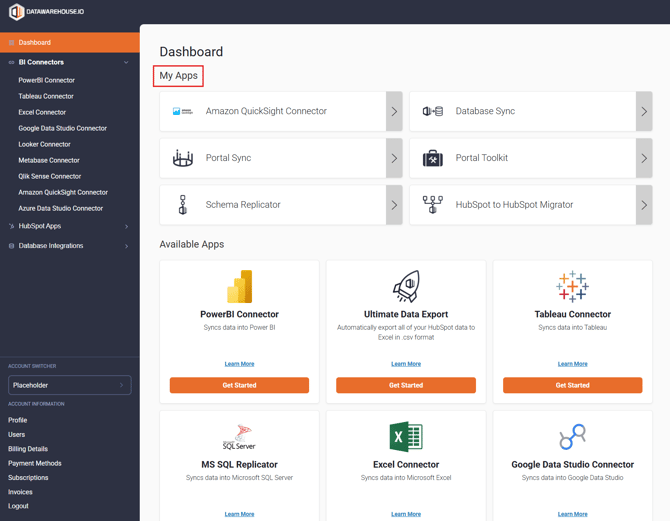
Log into your Datawarehouse.io account at https://app.datawarehouse.io/.
- Select your Connector app from the My Apps section of the main dashboard page.
-
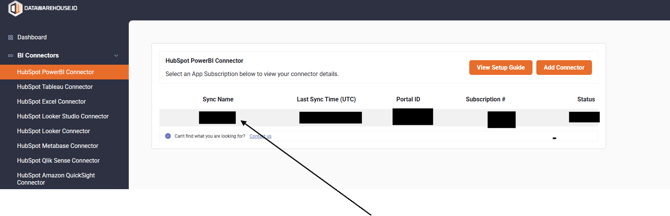
On the app details page, click on the sync name entry under the Sync Name column to open the management window for your sync. This will take you to your user panel.
Sync Configuration
The Sync Configuration feature allows users to select and deselect which pieces of data they wish to have synced from their data sources.
- Users can use this feature to suppress and remove any tables or specific fields/columns/properties that are currently synced into their database that they do not need or are not currently using.
- Suppressing properties and tables will not remove those pieces of data from your data source. Suppressing properties or tables excludes them from future syncs and removes the corresponding data from the database that the Datawarehouse.io app syncs to.
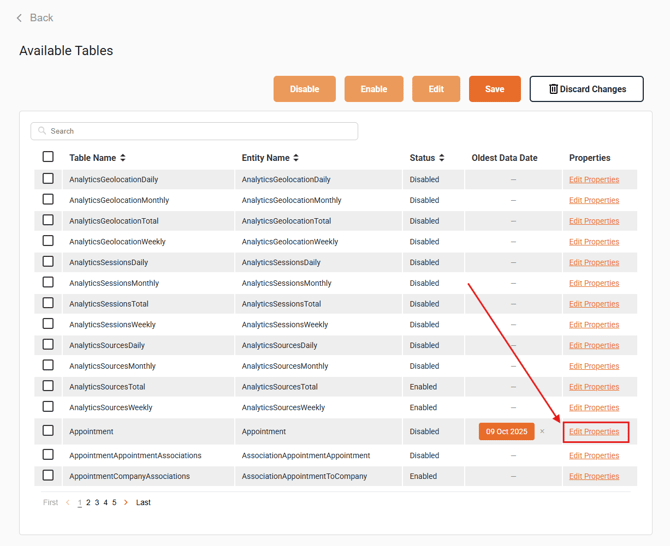
To learn how to locate and use this feature, please review the following help documentation linked below.
Manage Database Users
Additional users can be added and managed to your connector database with the Datawarehouse.io app, allowing additional users to access the database without needing to share the primary user credentials.
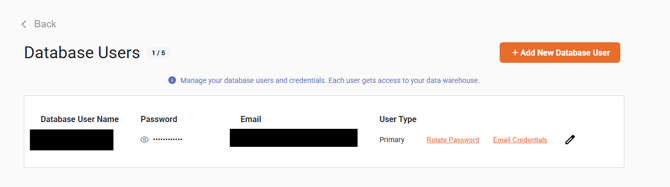
To learn how to add and manage additional users for your database, please review the linked documentation below:
Manage Data Sources
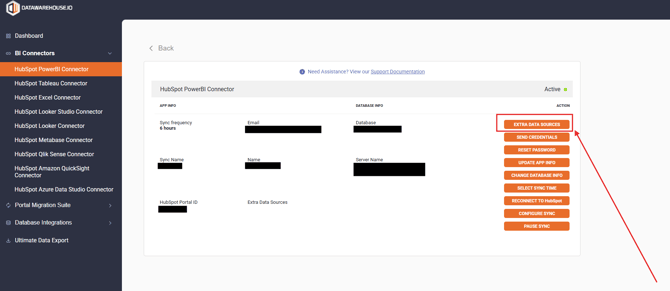
To manage your data sources, click the Data Sources button in the user panel interface.
For more details about what data sources are available, as well as how to add, remove, and alter existing data sources for your connector please visit the support guide linked below.
Power BI Setup
If you do not already have it, you can download Power BI Desktop for free at: https://www.microsoft.com/en-us/download/details.aspx?id=45331
If you are new to Power BI please visit https://docs.microsoft.com/en-us/power-bi/desktop-getting-started
When you open a new or existing Power BI document and want to use the Power BI Connector, please select the "Get Data" button under the home tab at the top of the application. Select other sources or click on the Icon.
Once the Get Data window appears, please select Azure on the left side.
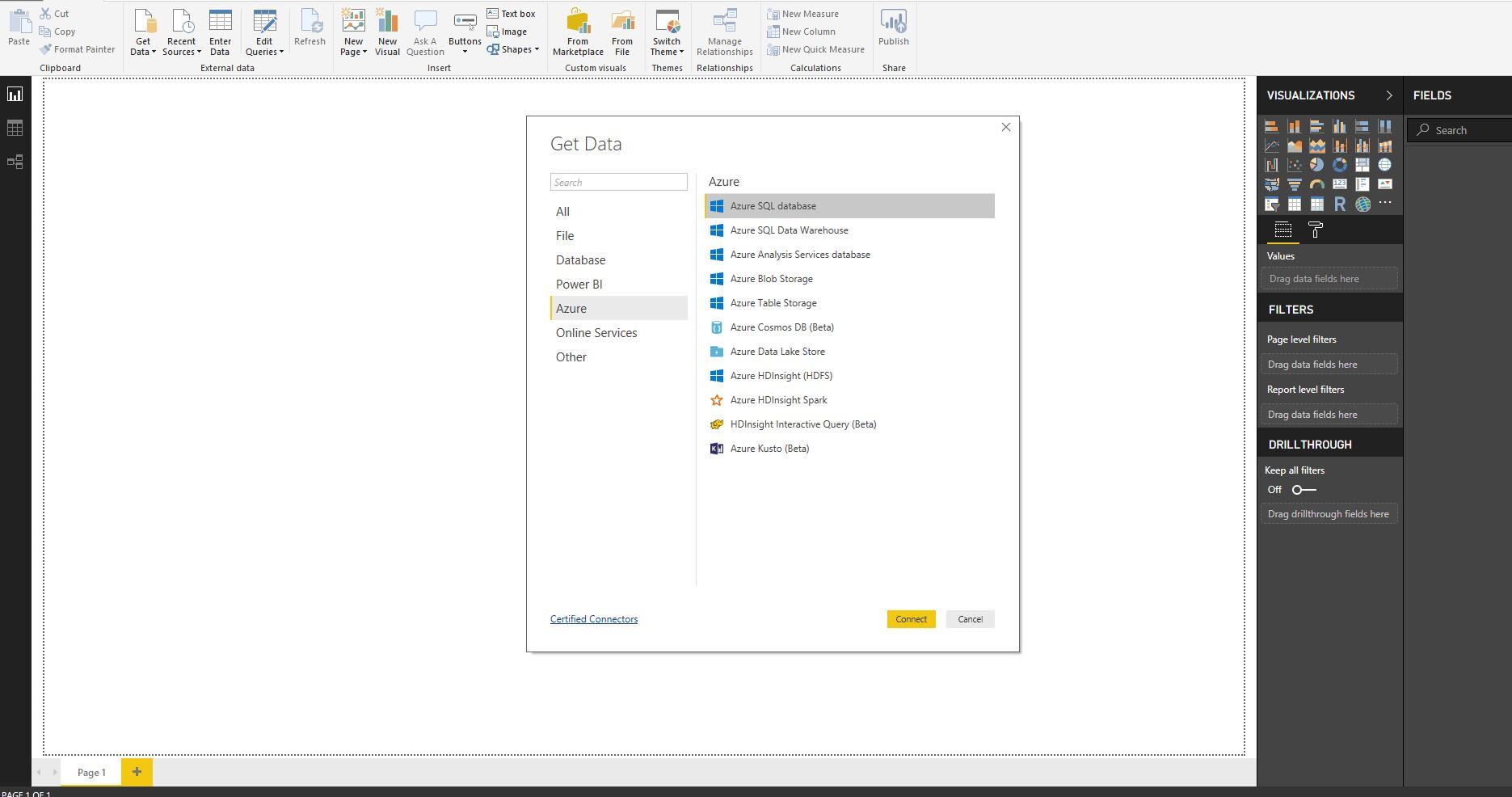
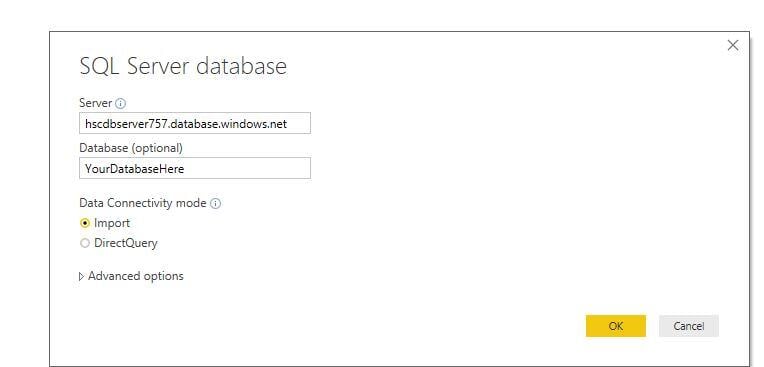
Then select Azure SQL Database and click the "Connect" button. You will then Enter the Server information and database provided to you via your activation email and click "OK."
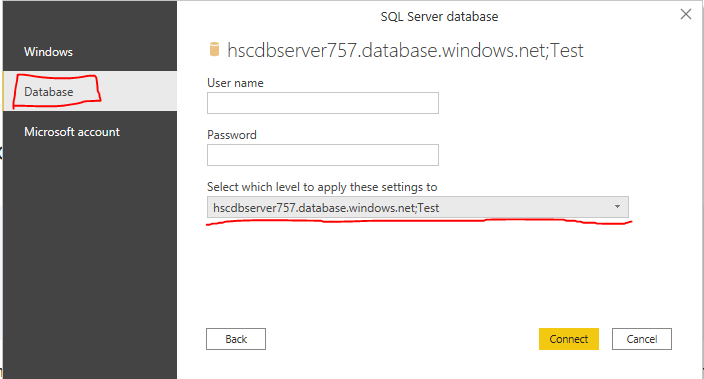
Once you input your server and database and click "Ok", you will be prompted to enter your username and password. You MUST select the database option on the left before entering your username and password. Then select your database as the level to apply those settings to. It is critical you select the the option in the dropdown menu that includes both your server name and database name as shown in the example below.
After following the instructions above, you will now be able to pull any data tables currently hosted inside your SQL server.
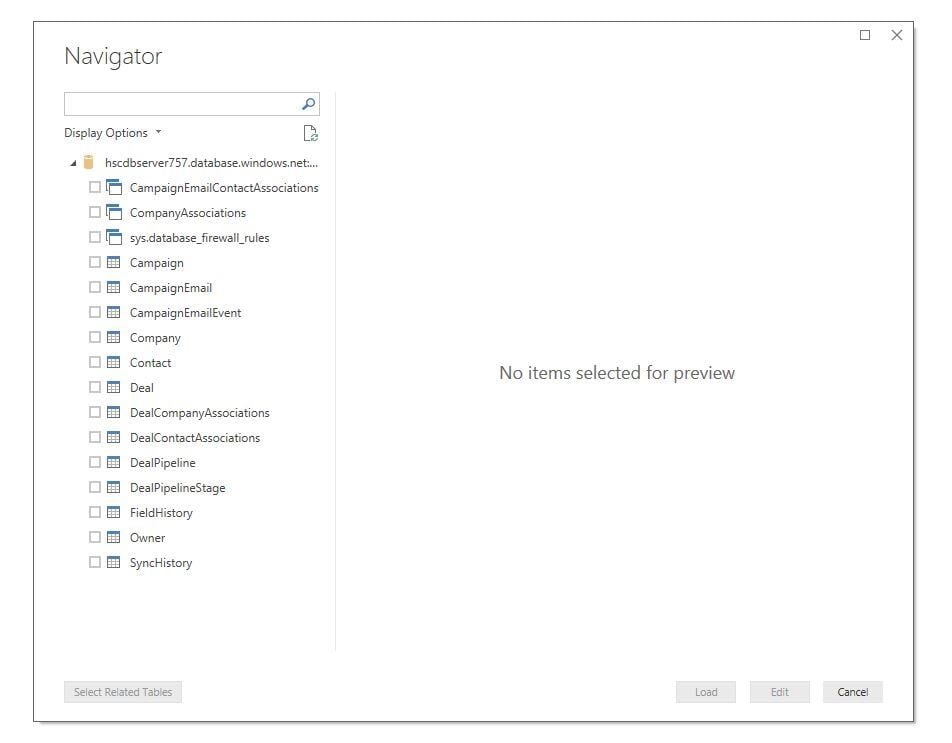
Select the Checkboxes for the tables you want to create reports on and click Load. It may take a moment depending on the size of your database and the tables you select.
Please refer to the Entity Relationship Diagram (ERD) linked below to learn how to best connect the various data tables together:
Allow at least 24-48 hours from activation for the initial database to be built. Once it is built it will refresh at the rate determined by your plan.
When opening the data for the first time in Power BI, you may need to change the relationship tables depending on how you need to display your data.
Power BI Template
The free Datawarehouse.io PowerBI sample template allows you to quickly get started visualizing your data and serves as a good example and starting point to build reports and dashboards.
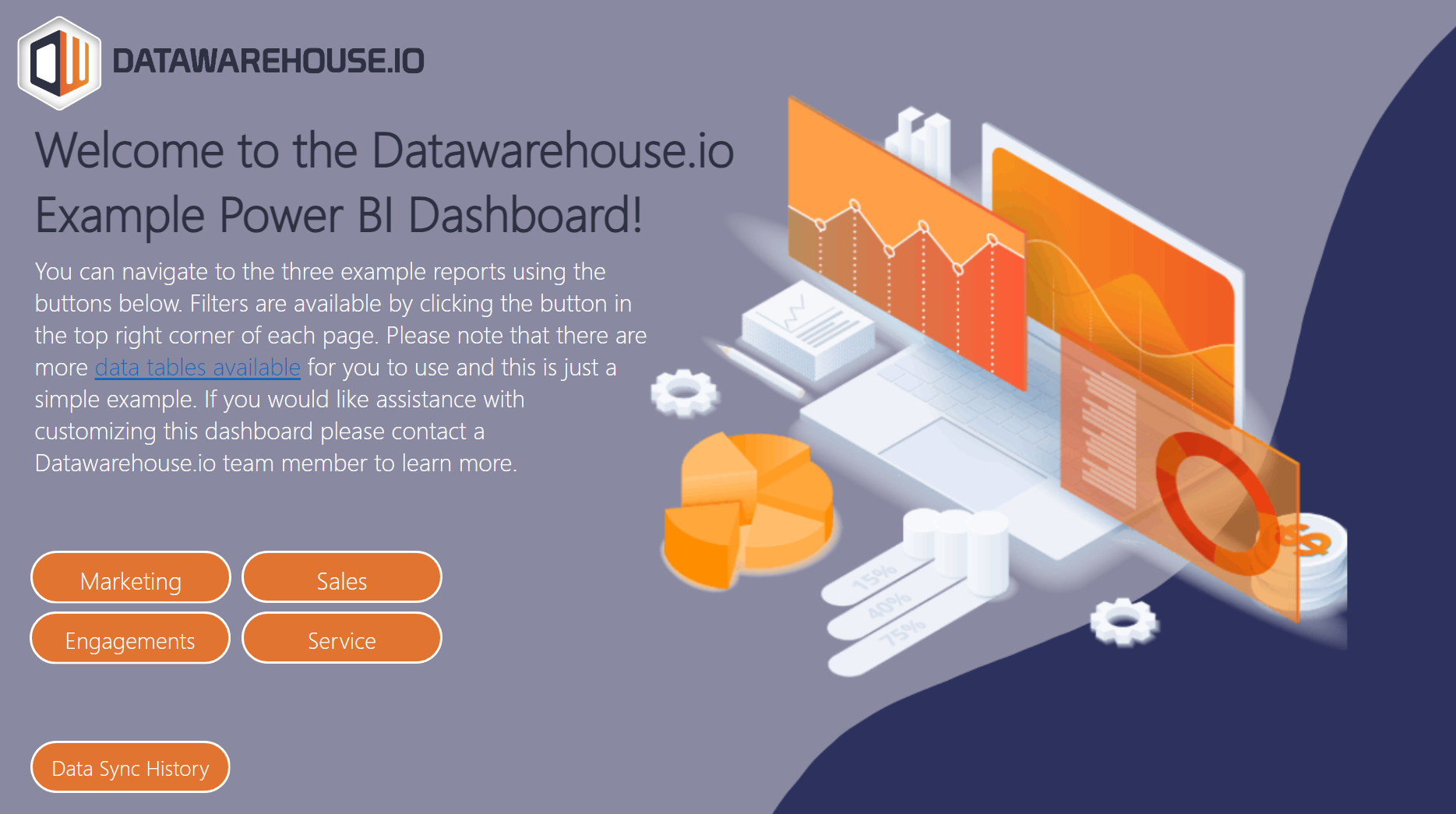
You can download the Power BI sample template file here.
It is important to wait at least 24 hours after sign up before using the template or else all of your data may not yet be available for use.
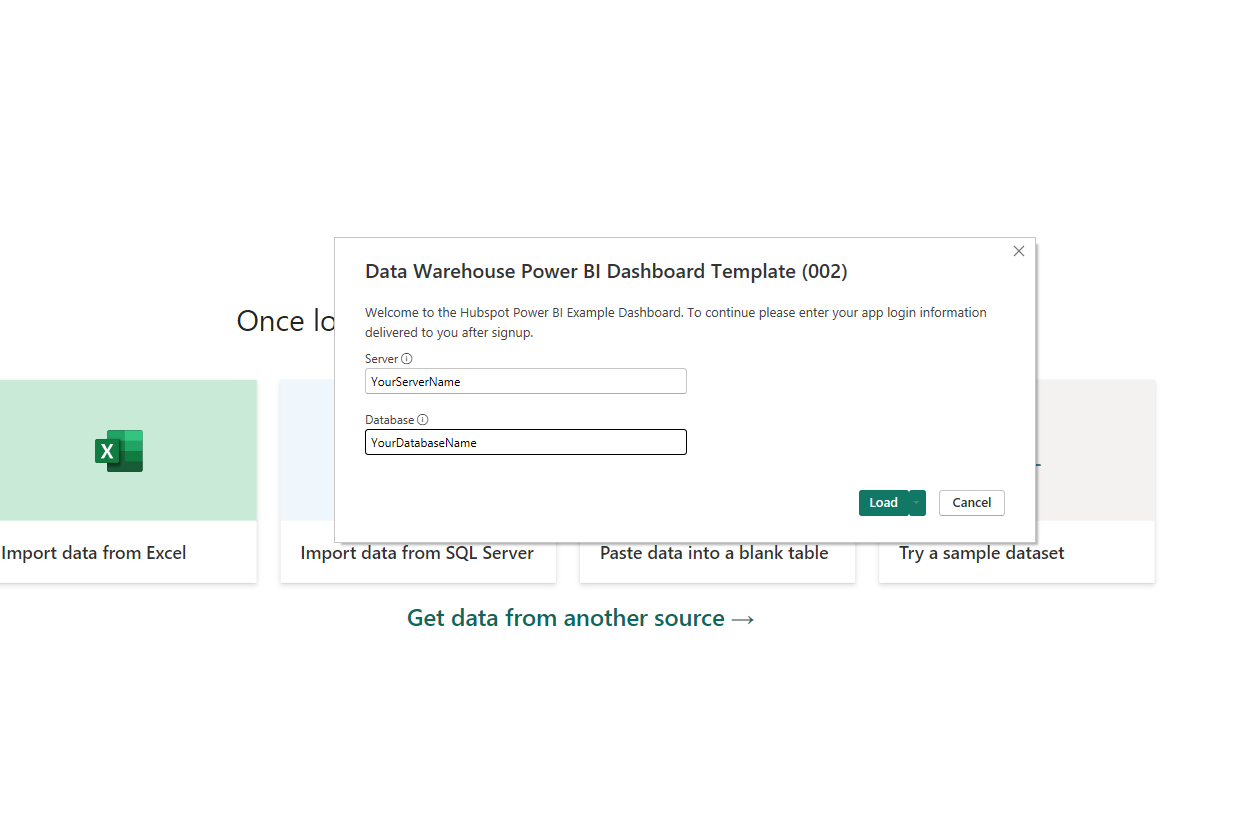
To use the sample template, open it up in PowerBI Desktop. You will see the following window. Please enter your Server name and Database name then click Load. You received this information via Email after signup. you can retrieve it again by visiting the User Panel.
You will then be prompted to enter your Database User and Password. Be sure to select the "Database" option on the left side or the login will fail.
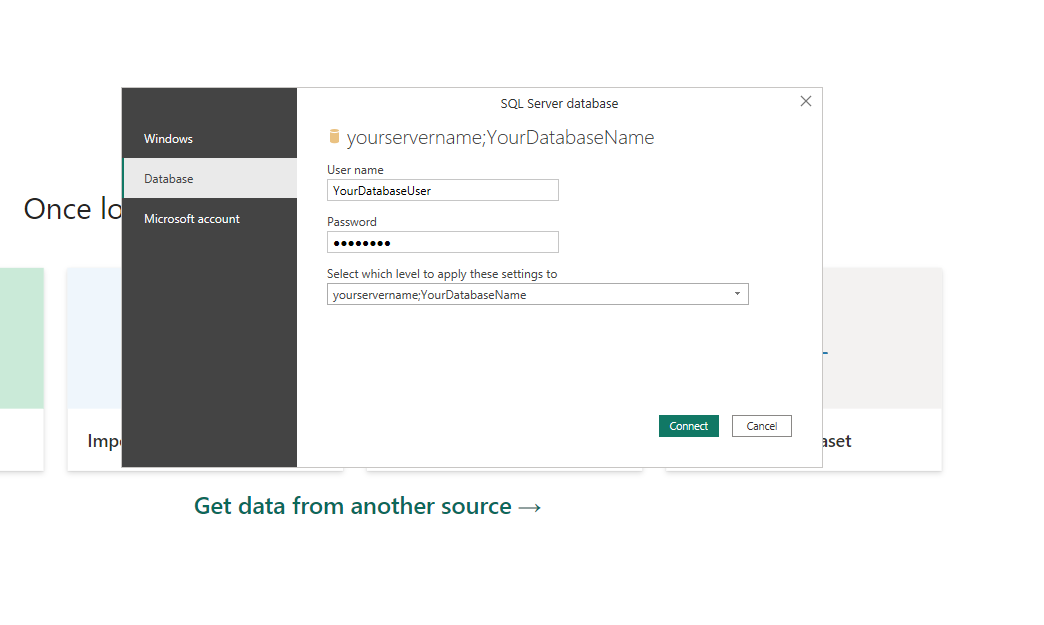
Once you click the connect button it can take 10-15 minutes to load the template as there are many queries and data points available.
How to Uninstall the app
For instructions on how to uninstall the Datawarehouse.io app in your data source, please review the following documentation:
*Please note this does not cancel your subscription. To do that please visit:
Beta API's
This app utilizes the following beta API's:
ChatflowThread and ChatflowMessage data tables contain Chatflows data and is powered by the beta API listed below.
https://developers.hubspot.com/docs/api/conversations/conversations
More information about beta APIs can be found in this supporting documentation.
Opt-In Tables
The following tables are available for opt-in as they tend to be larger, advanced data sets and can take up a significant amount of storage and API Calls. You can submit a support request with your database name at https://datawarehouse.io/opt-in-data-types/ or email us directly with your database name at help@datawarehouse.io to ask for these to be enabled. There is no additional cost to enable these tables.
- ContactWebEvents
- CustomEvent
- ContactSubscriptionType
- ChatflowThread
- ChatflowMessage
- TicketPropertiesHistory
- DealPropertiesHistory
- ContactPropetiesHistory
- CompanyPropertiesHistory
- EngagementsHistory
- CampaignContactAssociations
Data Sync
Data syncing will be done at intervals determined by your plan.
Please allow at least 24-48 hours from activation for the initial database to be built. Once it is built it will refresh at the rate determined by your plan.
Data Security
- Only you will have "read only" access to your database. You can make changes in PowerBI, but they will not be reflected in your data source.
- User authentication for each data source is done using OAuth 2.0 protocol as per the best practice in industry.
- This application is GDPR Compliant
- If you have trouble accessing the database due to your internal firewall restrictions please have your IT department open outbound TCP Port 1433
- If there is information missing from a property it could be because that fields is improperly configured in its respective data source.
Common PowerBI Issues
The below listed PowerBI issues are known issues with PowerBI itself. They do not have anything to do with our app specifically but are rather Common PowerBI issues that you may encounter when using our connector or other data sources.
Known Issue #1
-
"Failed to save modifications to the server. Error returned: 'There's not enough memory to complete this operation. Please try again later when there may be more memory available.
PowerBI Desktop can consume a significant amount of memory (RAM) on your desktop or laptop. It is a known issue with Microsoft PowerBI. You can read about it and potential solutions here here. https://community.powerbi.com/t5/Desktop/Optimize-memory/m-p/237142
We suggest either removing unnecessary tables from your report, reducing or optimizing your queries, or increasing the available memory on your computer.
If you are using Power BI Desktop, try increasing the Maximum allowed to 16000 under File / Options and Settings / Options / Global / Data Load.
It is important to note that if you encounter this error the PowerBI Connector app is working correctly its just that PowerBI needs more memory from your machine. Memory meaning RAM. There are multiple ways to resolve this and above are just some examples.
Known Issue #2
-
Refresh failed inside of PowerBI
If you ever receive an error that looks something like the following. That means that the field referenced below, in this case "hs_date_entered_30688072" is no longer available in your connector database.

This can occur if you, a user, or HubSpot themselves deletes a property from HubSpot. Our service will replicate that deleted and remove it from your connector database. Unfortunately PowerBI is not intelligent enough to "skip" the missing field and when this happens it may make the refresh fail if the field that has been deleted was used in your reports.
The solution to this issue is simple. Delete the Field/property from your dataset/dashboard inside of PowerBI and then the refresh will be able to proceed without issue.