
To add, remove, and manage database users, please review the following instructions listed below:
-
Log into your Datawarehouse.io account page at https://app.datawarehouse.io/
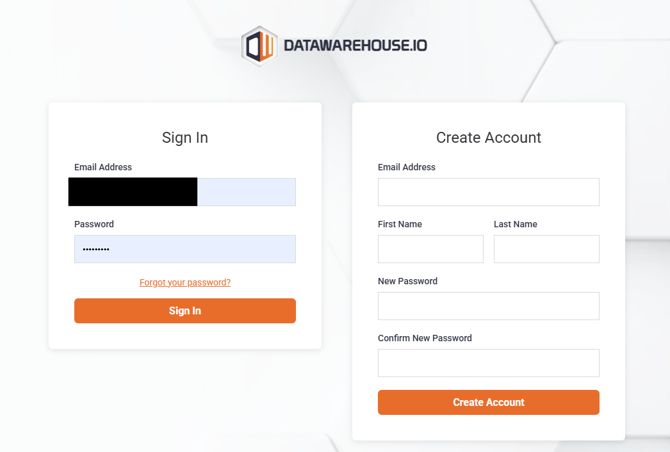
-
From the main dashboard, navigate to the My Apps section and click the button corresponding to your Connector app.
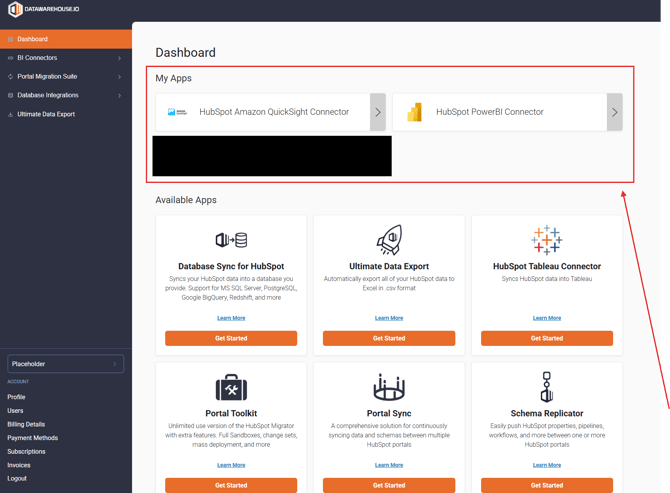
-
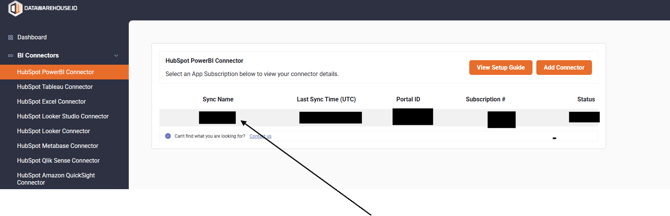
On the app details page, click the Sync Name column to open the user panel window for your sync.
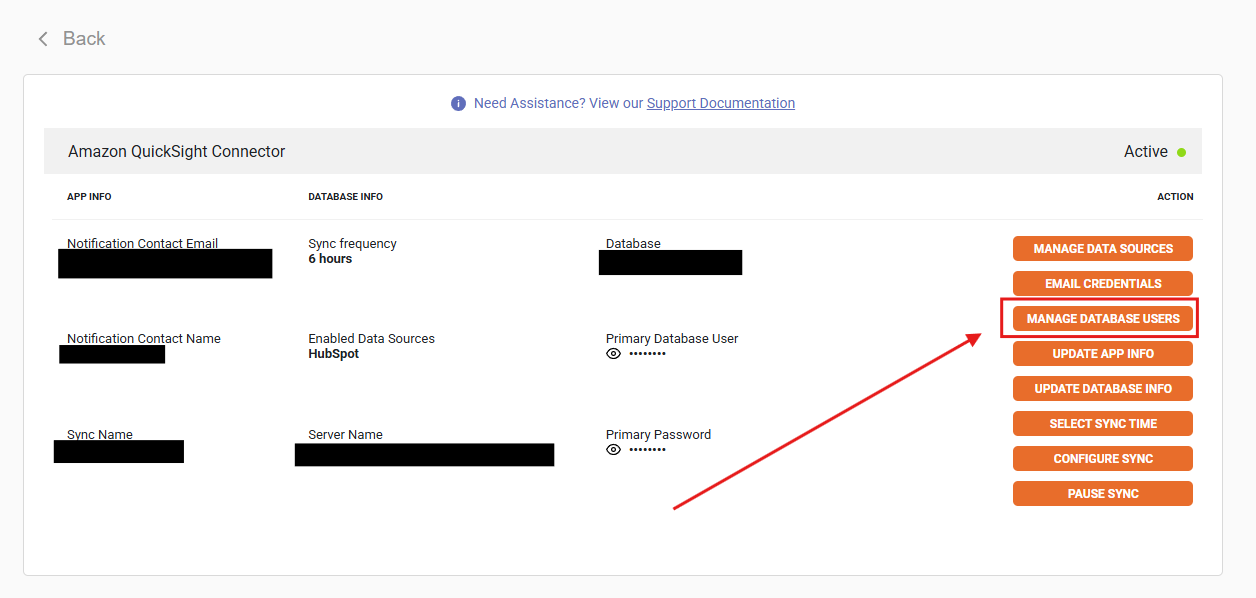
- Locate and click on the Manage Database Users button.
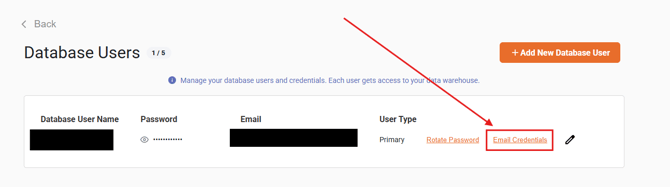
- Once in the Database Users settings page, you can add and manage users for your Connector database, change and reset passwords for each user for your database, and email the credentials to each respective created user.
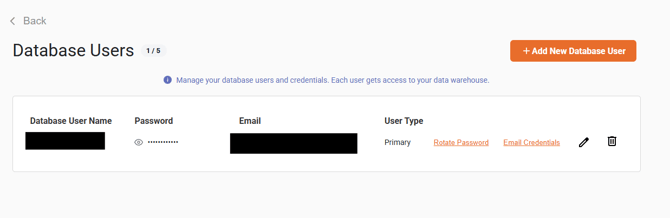
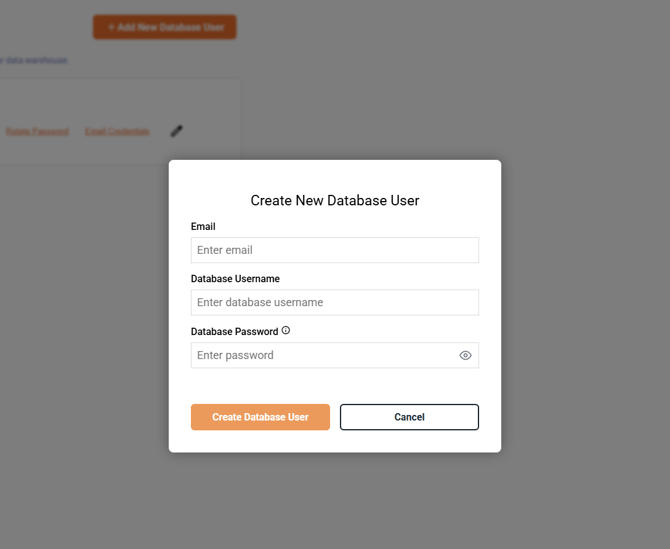
- The Add New Database Users button allows account users to add new users to the database.
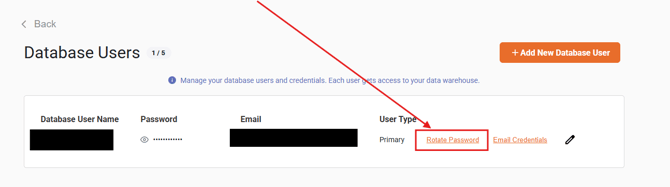
- The Rotate Password button allows users to auto-generate new passwords for selected users in the event a new password for their database user is needed.
- You can also define the password for a database by clicking on the pencil icon located on the far-right of your designated user. You can also edit the Database Name, and Database User name by clicking the pencil icon to open the edit window.
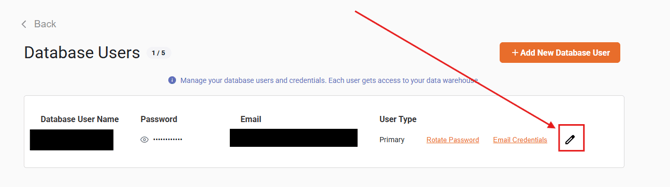
- You can also define the password for a database by clicking on the pencil icon located on the far-right of your designated user. You can also edit the Database Name, and Database User name by clicking the pencil icon to open the edit window.
- Clicking the Email Credentials will email the database credentials for that user to their designated email addresses.
- The Add New Database Users button allows account users to add new users to the database.