
Table of Contents
Controlling what data tables and columns you want syncing between your data source and Datawarehouse.io is easy with Sync Configuration.
How to access the Sync Configuration feature
Below are the steps to take to access and use the feature:
1. Log into your Datawarehouse.io account page at https://app.datawarehouse.io/
2. From the main dashboard, navigate to the My Apps section and click the button corresponding to your Connector or Database Sync app.
3. On the app details page, click on the label that corresponds to your subscription under the Sync Name column to open your user panel.
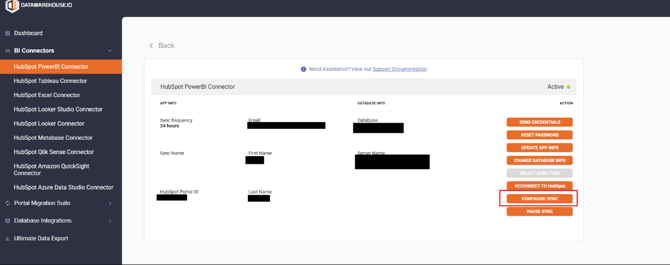
4. In your user panel, locate and click the Configure Sync button (see example below).
Features
Table Selection
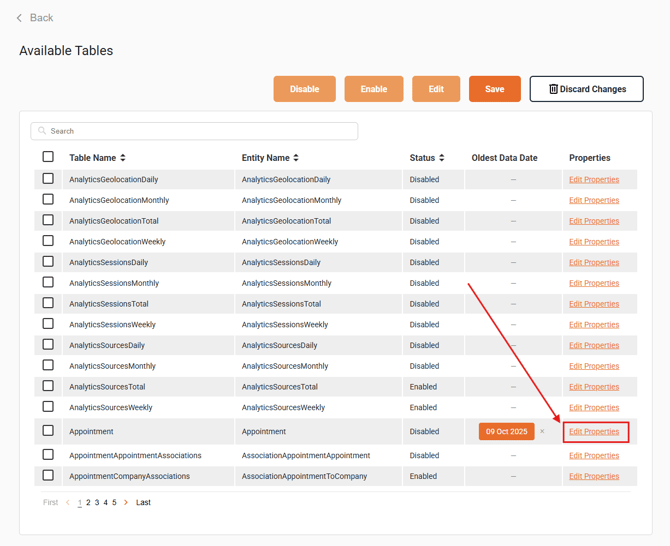
On the Sync Configuration page, you’ll see a list of all tables currently syncing into your dataset.
-
To suppress an entire table, check the box next to the table name.
-
Then click Disable, followed by Save, to apply the suppression.
Field/column selection
To suppress specific fields/columns within a table:
-
Click the Edit Properties button next to the desired table.
-
You’ll then see a list of fields that are currently populated within that table.
-
Select the fields you’d like to suppress and follow the same Disable→ Save process.
Date filter selection
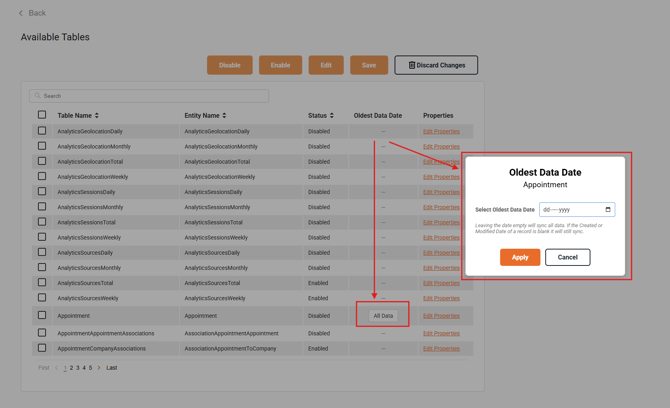
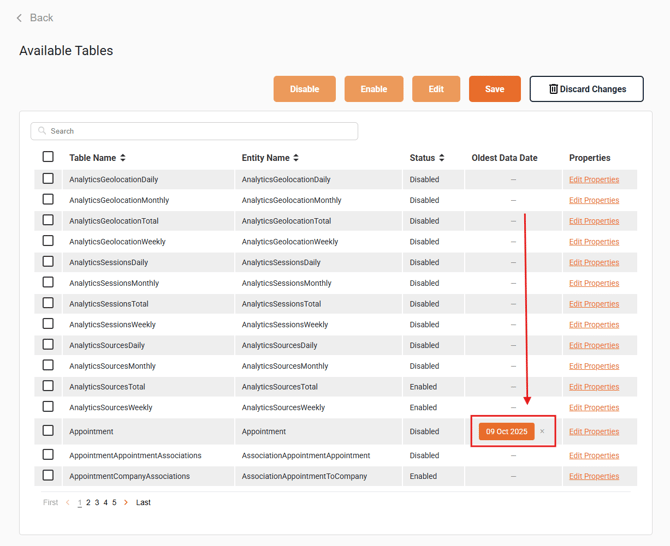
To filter for data that was created after a specific date, you can use the date filtering feature within the Sync Configuration settings. Simply click the All Data button next to the table you want to configure, then select the desired oldest date range to determine how far back the sync should retrieve data for that table.
Once saved, only records created within the selected timeframe will be included in future syncs for that table.
- Note: All dates displayed in this interface are in UTC date/time format. Please account for the time change between your local time zone and UTC when making your selection.
- Changing the Oldest Data Date will drop all affected table data and trigger a full resync for this table. This cannot be undone.
Important notes
Once your changes are saved, they will take effect on the next scheduled resync. Disabling tables/fields will remove all of the tables/fields you have selected from your database and prevent them from syncing into your database. This can help clear up space in your database and making the sync more efficient, reducing usage of your databases resources.
If you ever need to reverse a suppression, simply return to the Sync Configuration page and follow the same procedure to re-enable the relevant tables or fields.
Removing an active suppression will trigger a full resync for all affected tables. This means the app will perform a full resync for all data in the affected table that you add new fields to. The app performs this action to ensure data integrity and consistency. Full resyncs may take an extended period of time to complete depending on the volume of data in your database.
Furthermore, when removing fields/properties/columns from the dataset and sync, it will not remove/delete the corresponding property from your data source. It will only remove those fields from the dataset provided by the Connector/Database integration and prevent said field from syncing further.