Supported Data Sources
Below is the current list of data sources supported by our BI Connector, and Database Integration apps.
- HubSpot (How to connect and reauthenticate your app to HubSpot)
- Google Ads (How to add Google Ads as a data source)
- LinkedIn Ads (How to add LinkedIn Ads as a data source)
- Meta Ads (How to add Meta Ads as a data source)
Manage and Add Data Sources
To add, remove, and manage your data sources, please review the following instructions listed below:
-
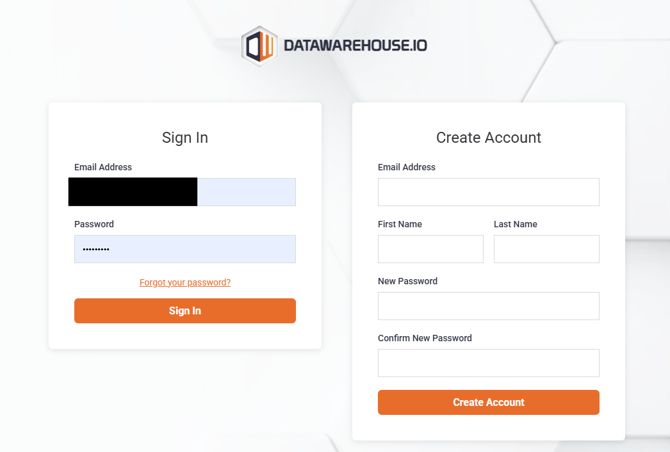
Log into your Datawarehouse.io account page at https://app.datawarehouse.io/
-
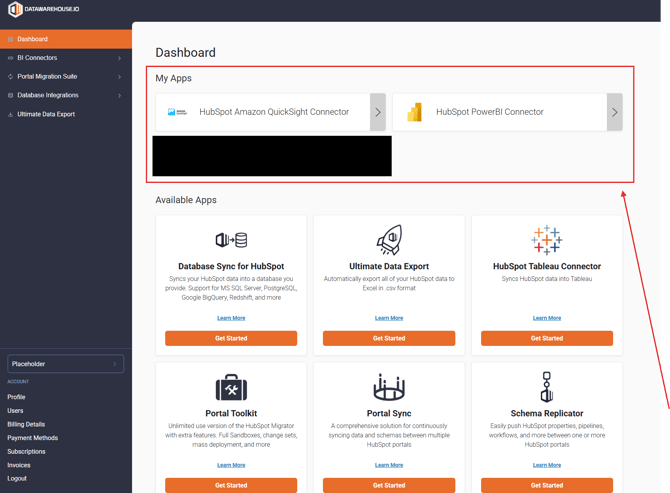
From the main dashboard, navigate to the My Apps section and click the button corresponding to your BI Connector, or Database Integration app.
-
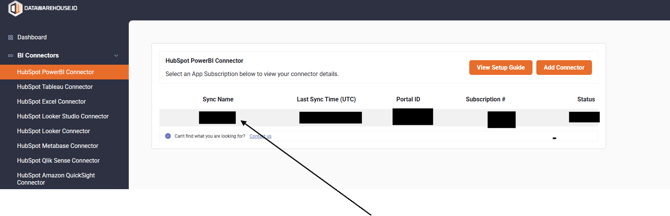
On the app details page, click the Sync Name column to open the user panel window for your sync.
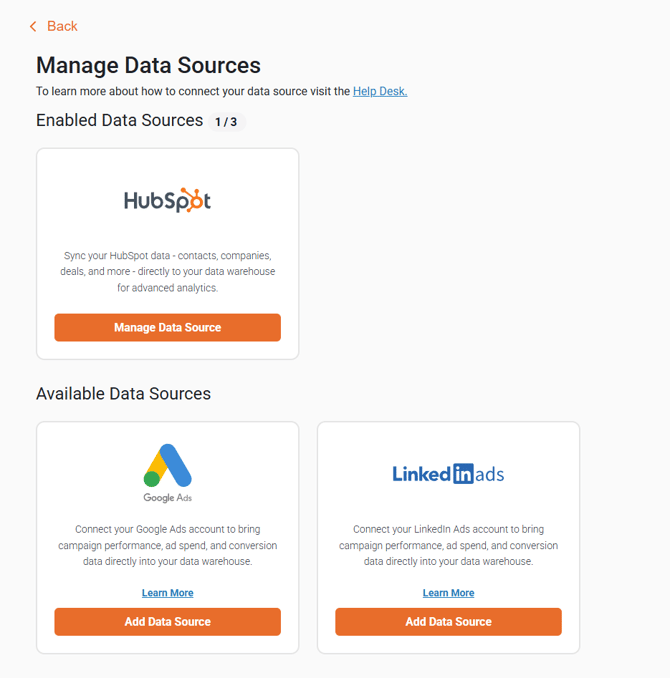
- Locate and click on the Manage Data Sources button.
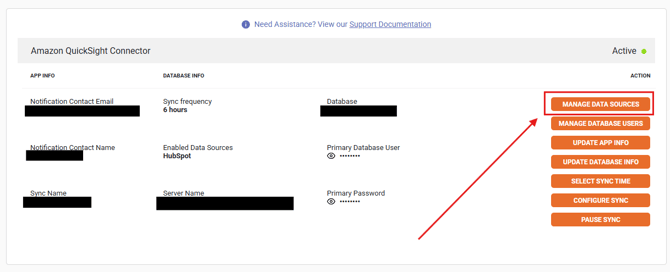
- The available Data Sources are displayed on this screen. Users can add, manage, and remove data sources as needed.