
Index
Connecting the app to Salesforce
To add or reauthorize your app in Salesforce, follow these steps:
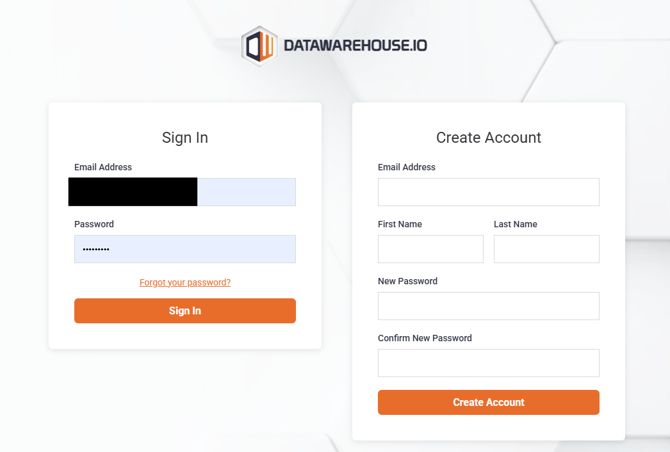
1. Log into Your Datawarehouse.io Account:
-
- Log into your Datawarehouse.io account page at https://app.datawarehouse.io/.
2. Navigate to your user panel.
-
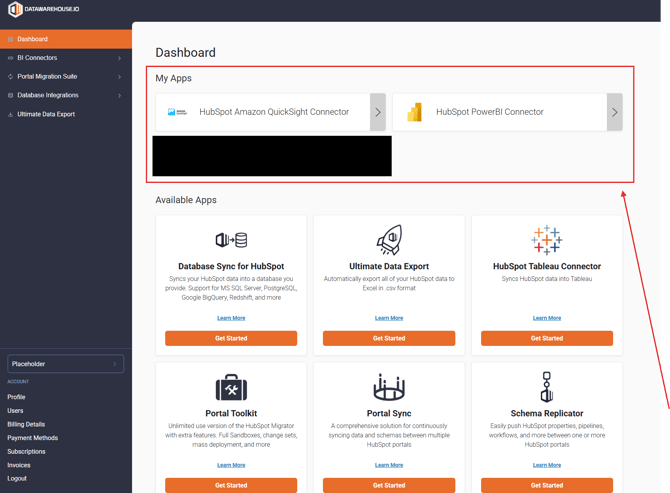
- When on the main Dashboard page of your account, click on the app you are subscribed to under the "My Apps" section.
-
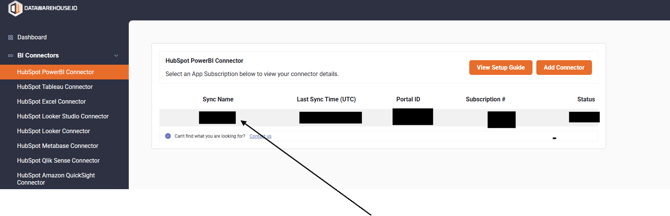
- From there, under the column "Sync Name", click on the name label that is underneath it. That will take you to your user panel.
3. Click on the Manage Data Sources button:
-
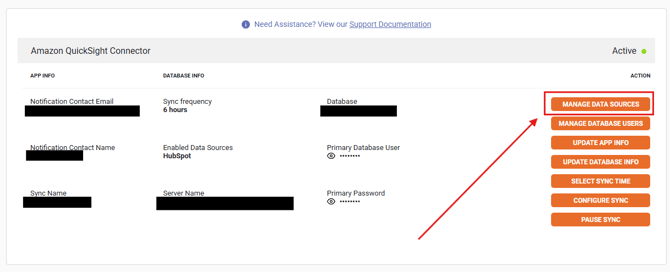
- Look for the button labeled "Manage Data Sources" and click on it. This will take you to the Data Sources page.
4. Connect/Reconnect/Disconnect the app with Salesforce:
-
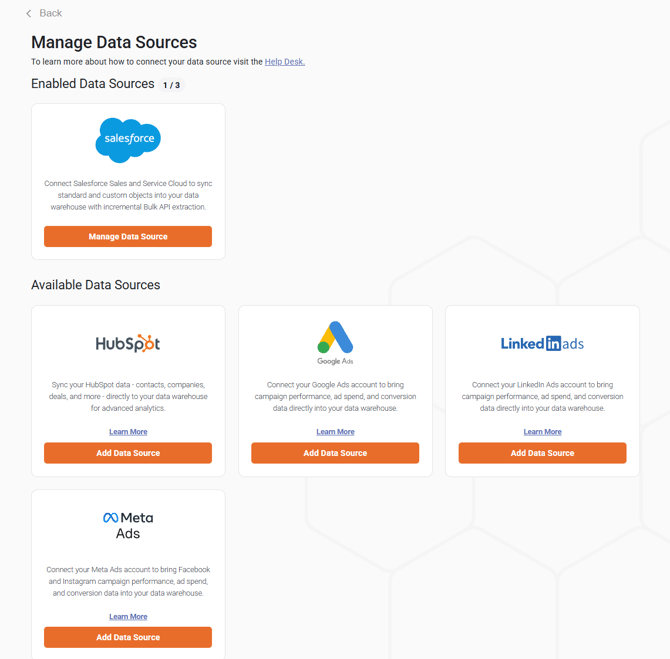
Locate the Salesforce data source.
Depending on the current connection status, Salesforce will appear under either:
- Enabled Data Sources (if Salesforce is already connected), or
- Available Data Sources (if Salesforce is not currently connected)
-
From there:
- Click Manage Data Source if Salesforce is already connected, or
- Click Add Data Source if Salesforce is not currently connected
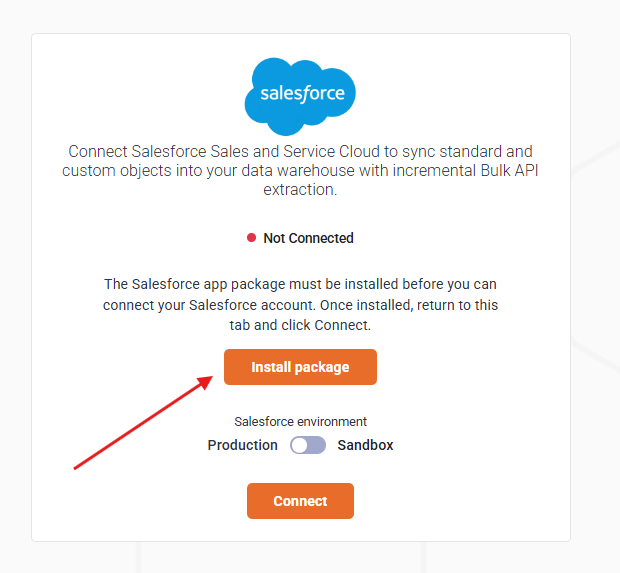
5. When adding Salesforce as a new data source, it is required for the app package to be installed within your Salesforce org before you can connect your Salesforce account.
-
To do that, first ensure that you are already logged into your Salesforce account. Then, from the Connector page, click on the Install package button to begin the installation process.
-
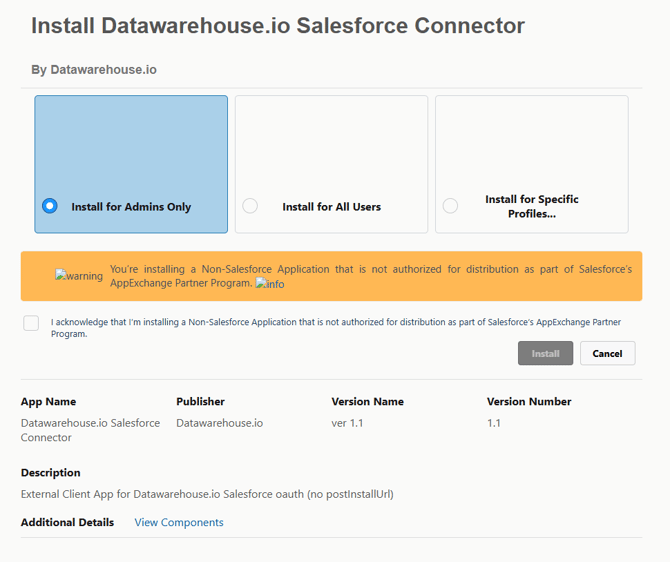
Once the new window opens up with the install prompt, you would select Install for Admins Only and then proceed with the installation.
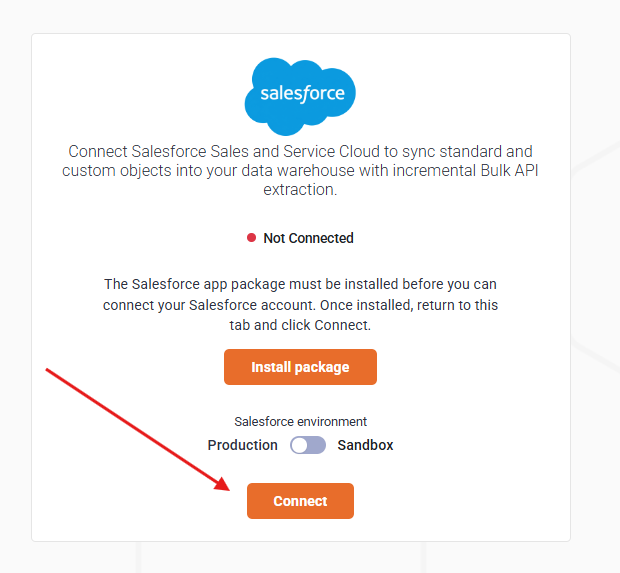
- Once you have received the installation complete prompt, click on Done and then return to the connection window in your Datawarehouse.io account page and select whether the account is a Production or a Sandbox account and then click Connect.
6. Once you have successfully made the connection, the Salesforce connection should be located under the Enabled Data Sources section of the Manage Data Sources page. If it does not reflect that, try refreshing the page.
Disconnecting the app
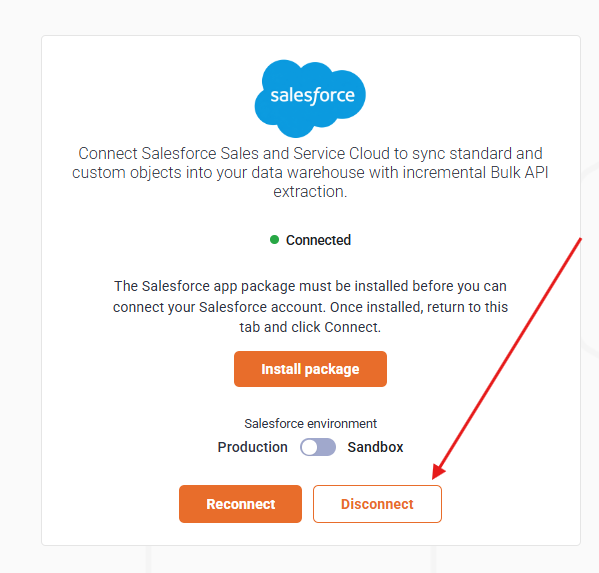
To disconnect the app from Salesforce, simply navigate back to the Manage Data Sources page as noted above and click on the Manage Data Sources button under Salesforce. From there, you will see a button labeled Disconnect. Click on that button and then confirm if you wish to disconnect the app from Salesforce.
Reauthorizing the app
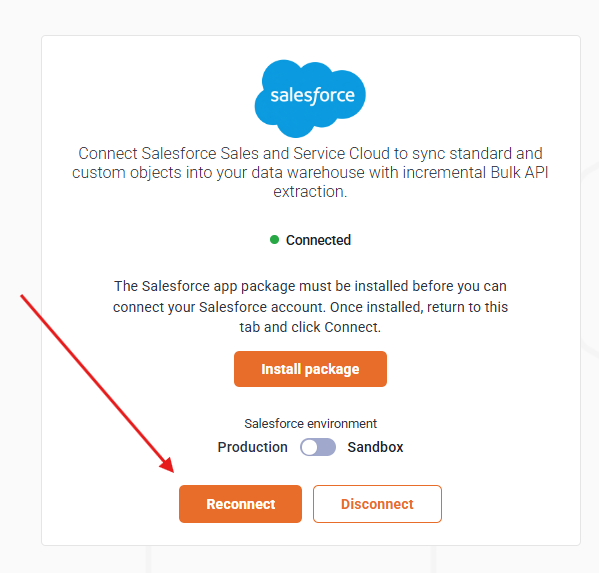
If you are reauthorizing the app with Salesforce, simply navigate back to the Manage Data Sources page as noted above and click on the Manage Data Sources button under Salesforce. From there, you will see a button labeled Reconnect. Click on that button to reauthorize the app.
Note: Please ensure that the app package is installed and enabled in the Salesforce org before attempting to reconnect. You can find that in your setup page in Salesforce by going to Setup > Platform Tools > Apps > Packaging > Installed Packages.
Important Notes
-
Admin Requirement: Ensure that an Admin assigned to your Salesforce org performs the connection/reauthentication process. This is necessary for the app's install package to be able to be installed into your Salesforce org and for the app to have the required permissions to pull all the data available from.
-
Data Availability: After reauthorization, any new tables or data that were recently enabled will typically become available within 24 hours or during the next scheduled resync.
Conclusion
Connecting and reauthorizing your app in Salesforce is a straightforward process that involves logging into your Datawarehouse.io account, navigating to the appropriate section, and following the prompts to reconnect. Always ensure that an Admin is handling the connection/reauthentication to maintain the necessary permissions for data access. If you have further questions or need assistance, feel free to reach out to the Help Desk via the link below for support.