
Here is how to locate the internal names of custom objects in HubSpot:
-
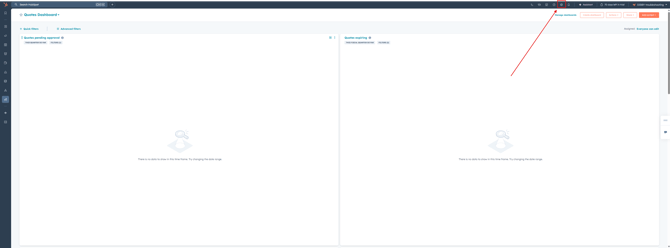
Open HubSpot and go to your Settings page.
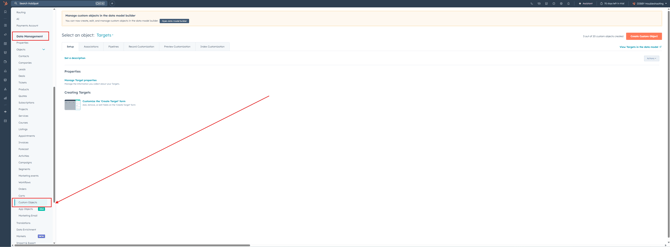
- In your Settings page, navigate to Data Management > Objects > Custom Objects.
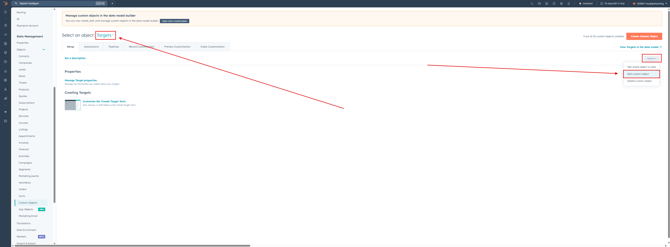
- In the Custom Object menu, locate and select the custom object in question that you need in the "Select an object:" dropdown menu and then navigate to and open the Actions dropdown menu and select Edit custom object.
- A pop-up sidebar will appear on the right side of your screen. In that sidebar, you will find the internal name of the custom object you have selected.
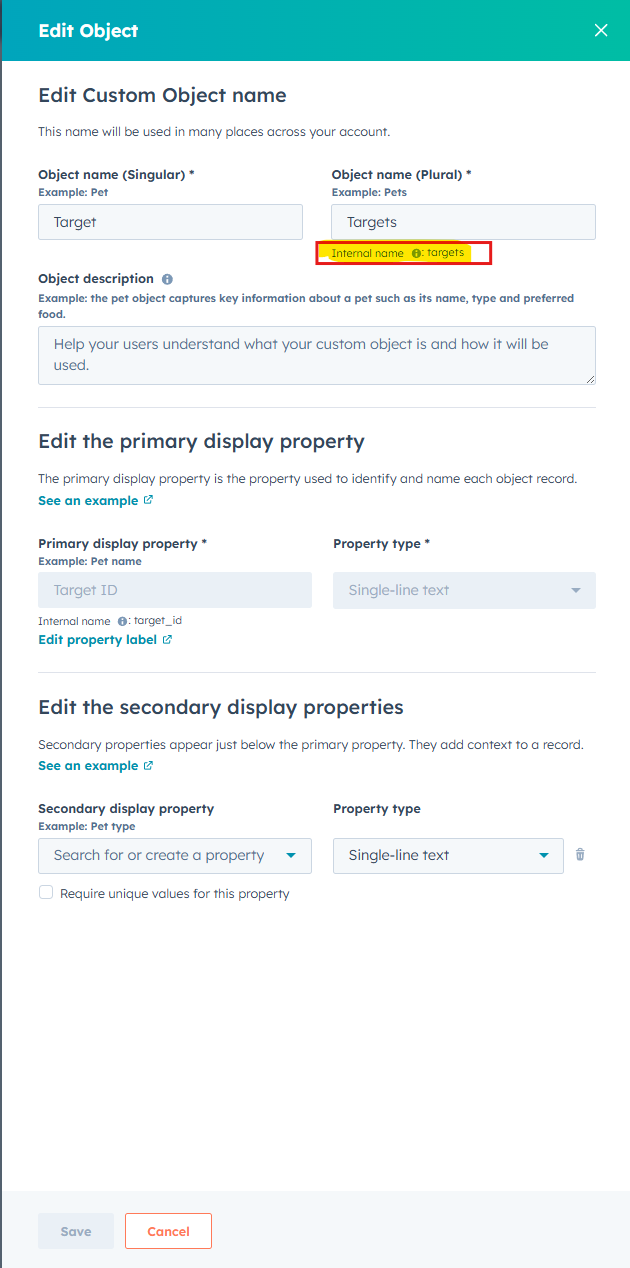
In the event Connector or Database Sync users cannot immediately locate any of their custom object tables within their datasets, they can refer to the internal name of the object in HubSpot and use that to cross reference the names of the tables in their dataset to locate the one they are looking for.
If there is a custom object in HubSpot that is not being reflected in the dataset provided by either of our apps, please send over full, uncropped and unedited screenshots of the label and internal name of the custom object in HubSpot to our Help Desk at help@datawarehouse.io and a member of our team will be happy to look into this further.