Connecting the app to Meta Ads
To connect the app to your Meta Ads account, please follow these steps:
1. Log into Your Datawarehouse.io Account:
-
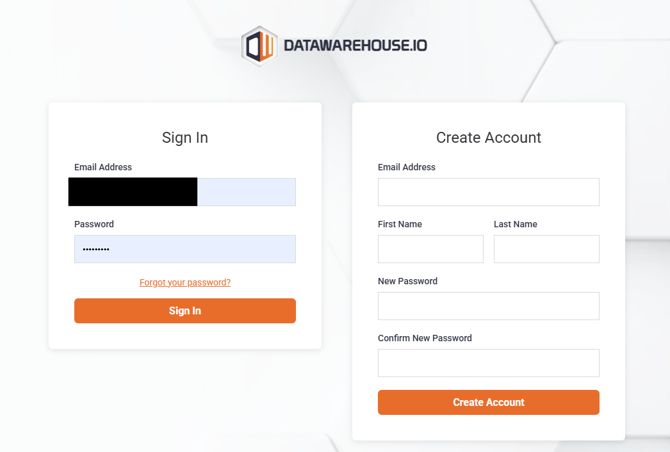
- Log into your Datawarehouse.io account page at https://app.datawarehouse.io/.
2. Navigate to your user panel.
-
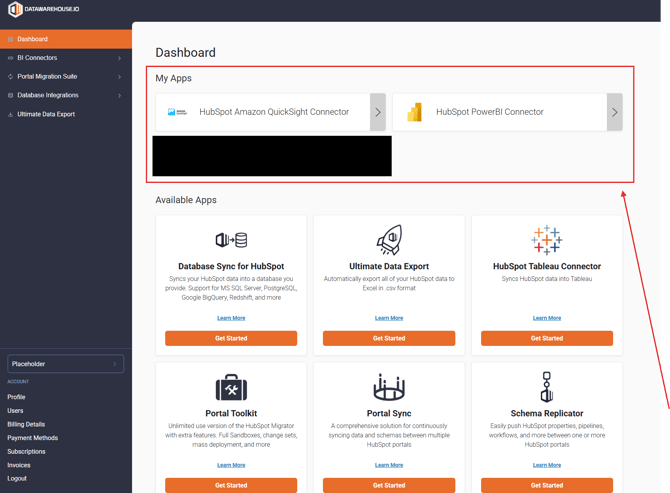
- When on the main Dashboard page of your account, click on the app you are subscribed to under the "My Apps" section.
-
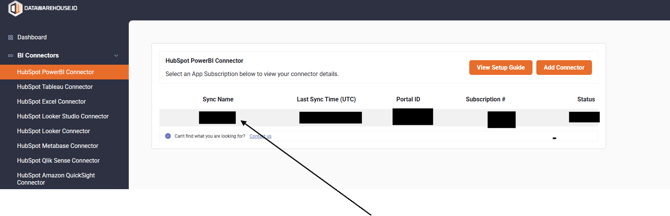
- From there, under the column "Sync Name", click on the name label that is underneath it. That will take you to your user panel.
3. Click on the Manage Data Sources button:
-
- Look for the button labeled "Manage Data Sources" and click on it. This will take you to the Data Sources page.
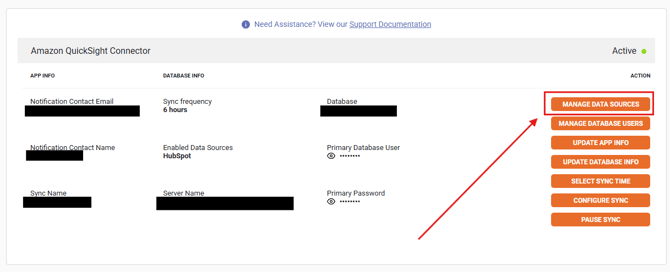
4. Connect the app to Meta Ads:
-
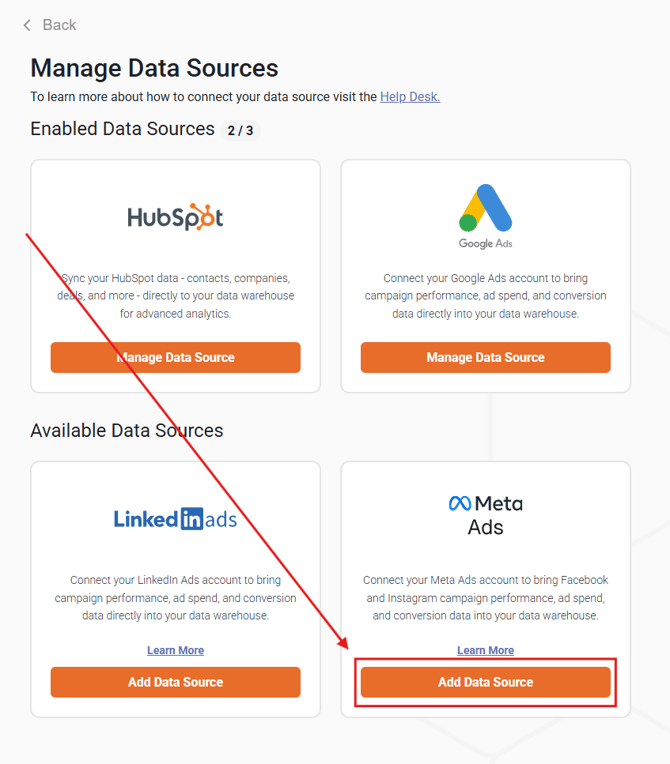
Locate the Meta Ads data source selection.
Depending on the current connection status, HubSpot will appear under either:
- Enabled Data Sources (if HubSpot is already connected), or
- Available Data Sources (if HubSpot is not currently connected)
-
From there:
- Click Manage Data Source if HubSpot is already connected, or
- Click Add Data Source if HubSpot is not currently connected
5. When adding Meta Ads as a new data source, click on the Add Data Source button. It will take you to the following window below where you will click on Connect to start the connection process to HubSpot.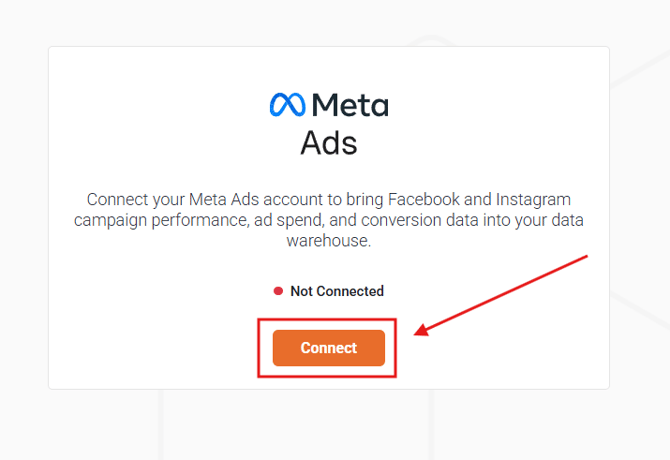
6. Once you have completed the authorization process, the following window will appear. From here, select the Meta Ads account(s) you wish to sync and then click Continue to complete the connection process.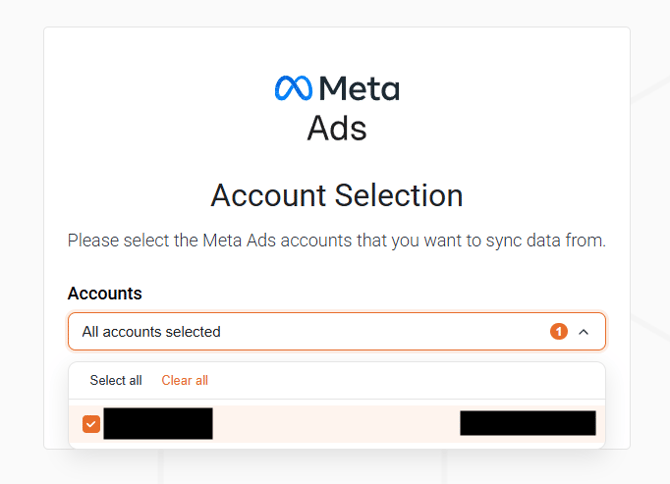
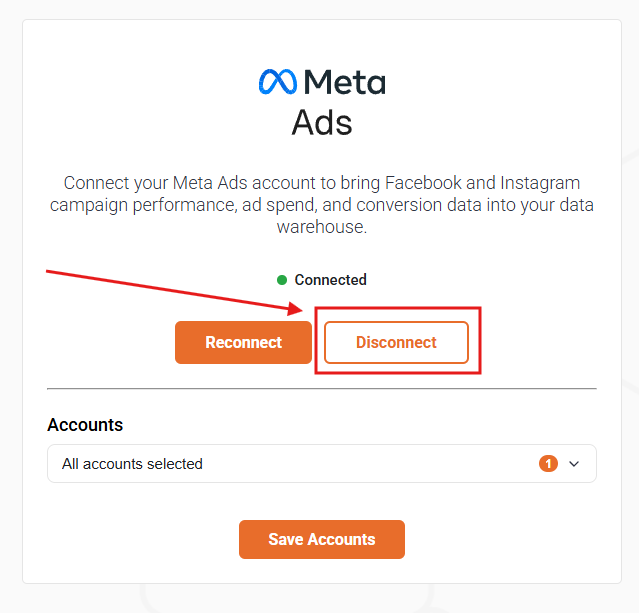
To disconnect the app from your Meta Ads account, navigate back to the Manage Data Sources page and click on the Manage Data Sources button under Meta Ads. From there, you will see a button labeled Disconnect. Click on that button and then confirm if you wish to disconnect the app from Meta.