
How to navigate to the connection status:
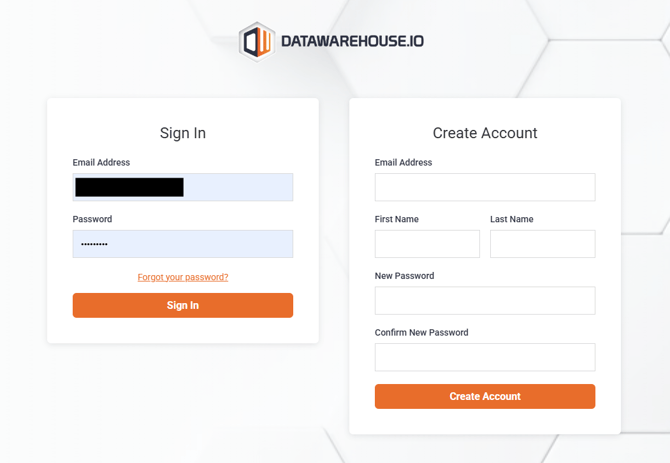
- Log into your Datawarehouse.io account at https://app.datawarehouse.io/.
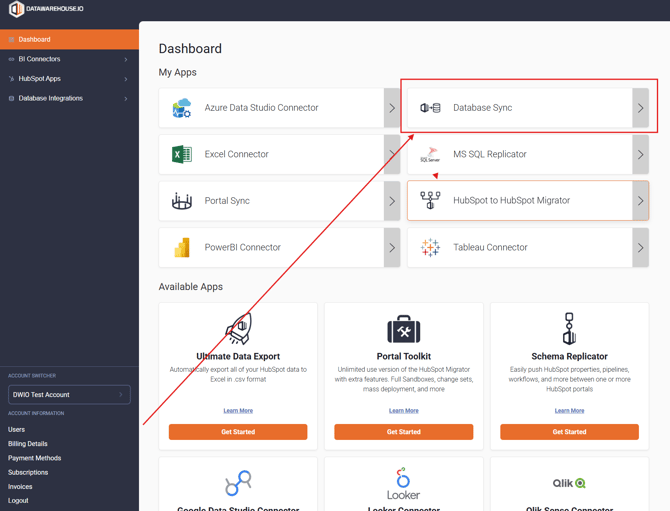
- Navigate to and click on the Database Sync option under the My Apps section of the main dashboard page.
- In the sync selection page, navigate to the Sync Name column and click on the sync name for your subscription. This will take you to the user panel for that subscription.
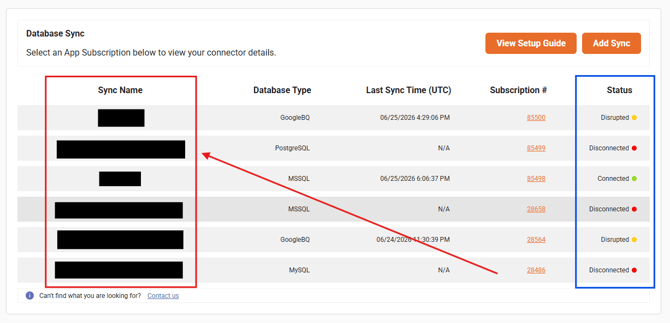
- Note: The current connection status for your Database Sync subscription will be displayed in the column labeled Status (see screenshot above in section marked in blue).
- Note: The current connection status for your Database Sync subscription will be displayed in the column labeled Status (see screenshot above in section marked in blue).
- In the user panel, click on the Check Connection Status button.
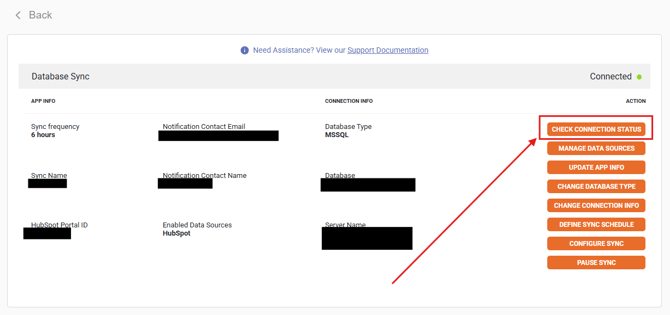
- A separate pop-up window will appear as shown in the examples below.
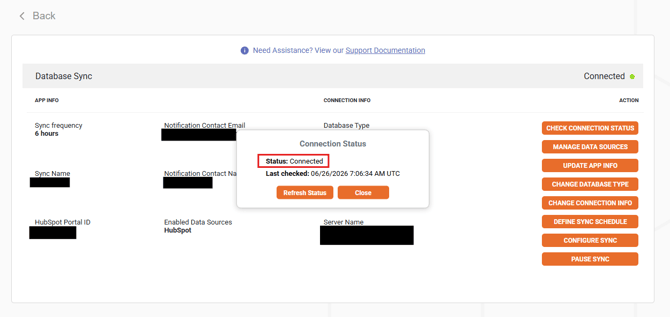
- Connected: The destination database is successfully connected to the Database Sync app.
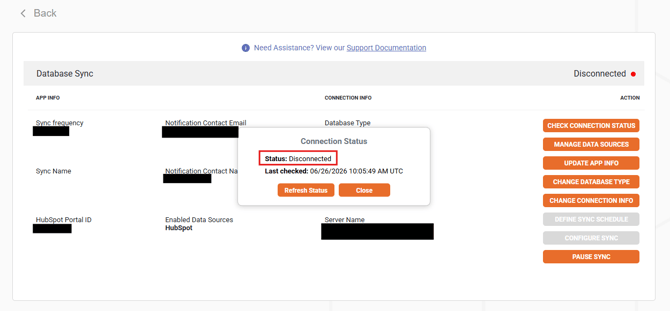
- Disconnected: The connection between the database and the Database Sync app is disconnected. A reason will be listed.
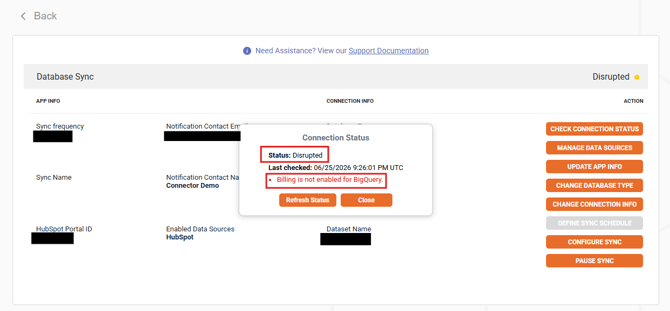
- Disrupted: The connection between the database and the Database Sync app has been interrupted.
- The cause of the connection disruption should be posted below the Last Checked time stamp as seen in the example below.
- The cause of the connection disruption should be posted below the Last Checked time stamp as seen in the example below.
- Connected: The destination database is successfully connected to the Database Sync app.