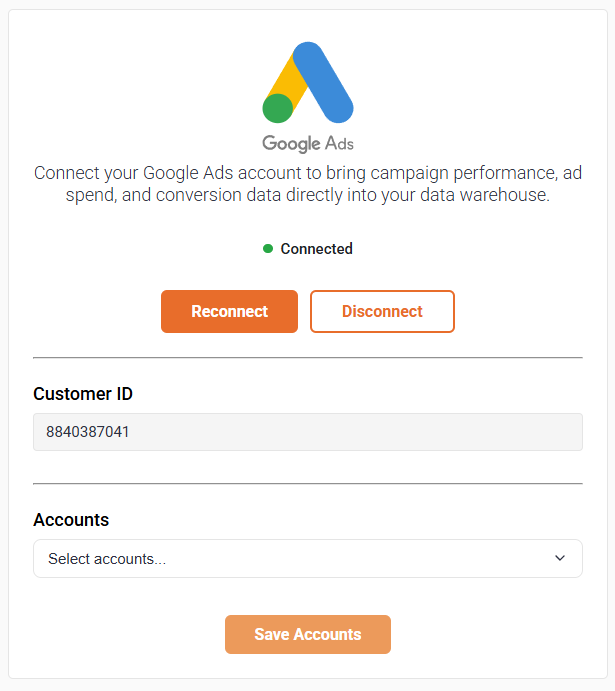
To add, remove, and manage your Google Ads data source, please review the following steps listed below:
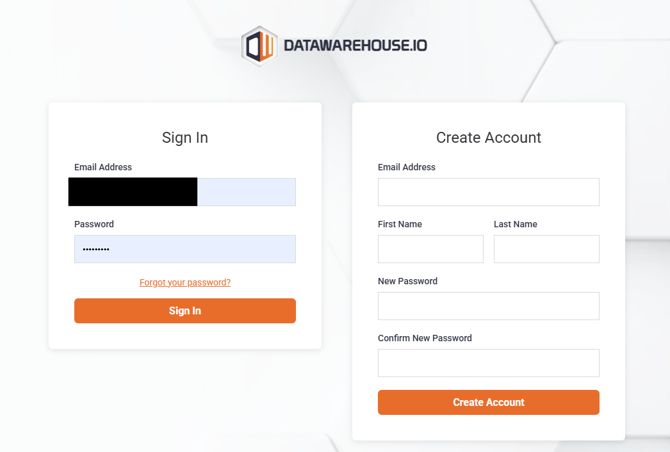
1. Log into your Datawarehouse.io account page at https://app.datawarehouse.io/
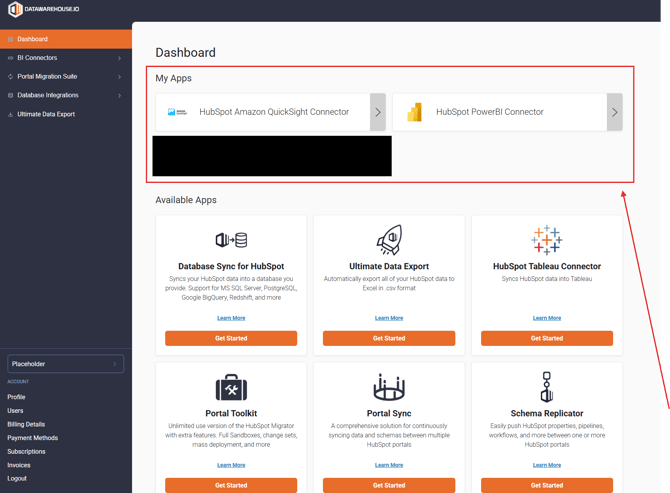
2. From the main dashboard, navigate to the My Apps section and click the button corresponding to your BI Connector, or Database Integration app.
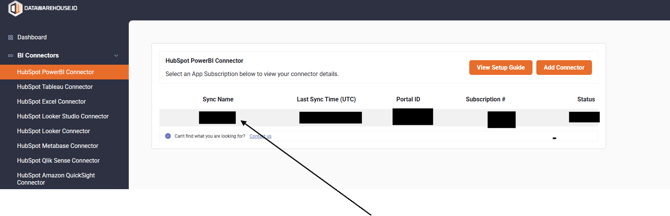
3. On the app details page, click the Sync Name column to open the management window for your sync.
4. Locate and click on the Manage Data Sources button.
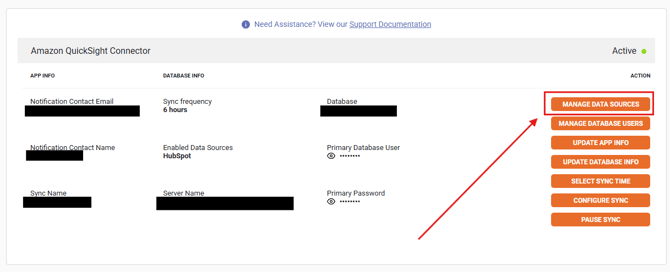
5. Connect/Reconnect/Disconnect the app with Google Ads:
-
-
Locate the Google Ads data source.
Depending on the current connection status, Google Ads will appear under either:
- Enabled Data Sources (if Google Ads is already connected), or
- Available Data Sources (if Google Ads is not currently connected)
-
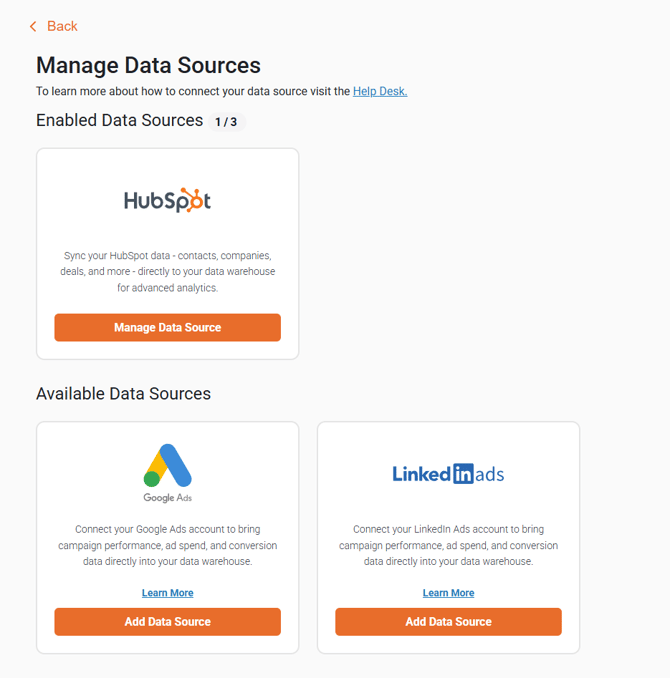
-
-
From there:
- Click Manage Data Source if Google Ads is already connected, or
- Click Add Data Source if Google Ads is not currently connected
This will take through the app authorization set up to approve the app to link with your LinkedIn Ads account(s).
-
6. Once you have completed the authorization process, the following window will appear. Input your Google Ads Customer ID (without the hyphens) in the Customer ID field and then click Load Accounts.
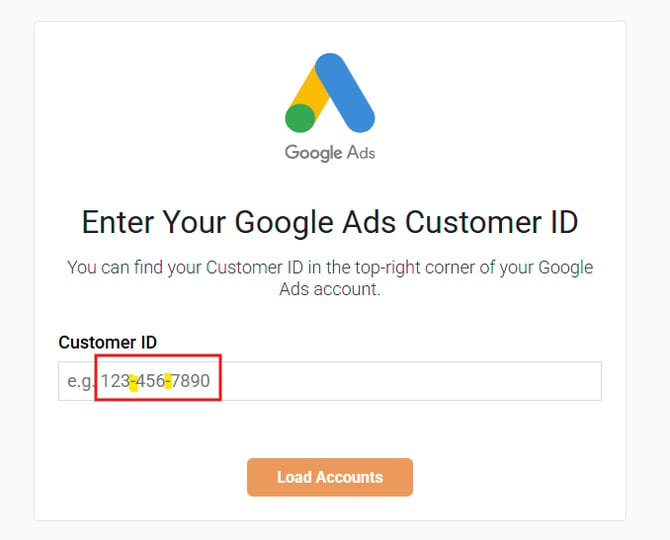
7. After that, select which account(s) you wish to have linked to the app and then click Continue to successfully complete the link.
To disconnect the app from your Google Ads account, navigate back to the Manage Data Sources page and click on the Manage Data Sources button under Google Ads. From there, you will see a button labeled Disconnect. Click on that button and then confirm if you wish to disconnect the app from Google.