
Due to privacy laws and regulations, third party ads platforms (such as Google ads, Facebook, LinkedIn, etc.) do not allow HubSpot to pass through paid ads data provided by their APIs to any third-party ETL services such as ours. Allowing a third-party ETL tool such as our Connector apps to extract and store that information via HubSpot's APIs would be considered a breach of confidentiality on HubSpot's part.
Additionally, the Ads API that HubSpot does publicly expose is outdated and contains unreliable data, which is why we do not have it enabled by default.
That said, the Connector and Database Sync apps now have the ability to access ads and social media data directly from third-party platforms using the Extra Data Sources feature.
Here is how to access and use that feature:
-
Log into your Datawarehouse.io account page at https://app.datawarehouse.io/
-
From the main dashboard, navigate to the My Apps section and click the button corresponding to your Connector or Database Sync app.
-
On the app details page, click the Sync Name column to open your sync user panel.
- Locate and click on the Extra Data Sources button.
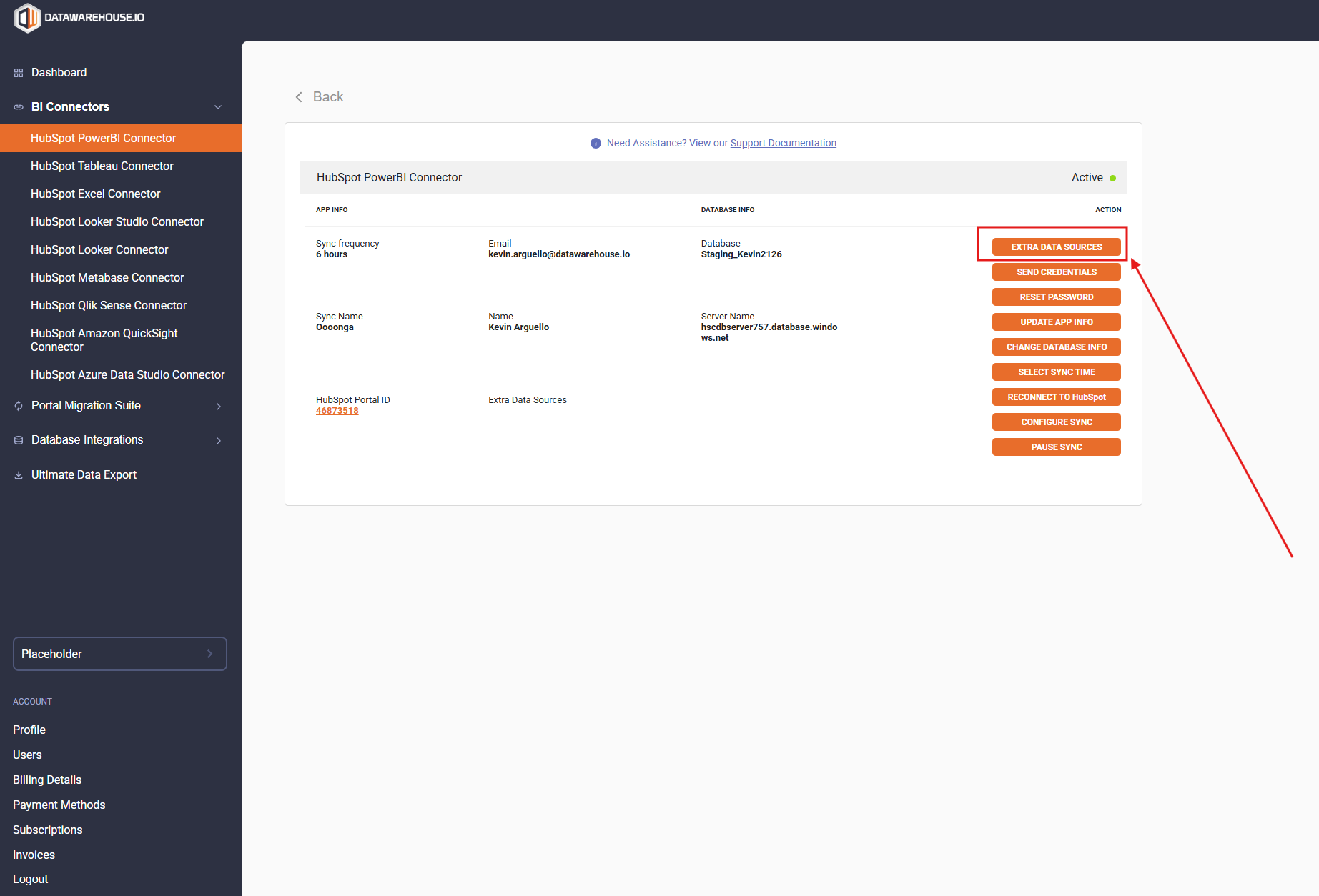
- Here you will see additional data sources that can be included with the data you are receiving from HubSpot. Just click on the data source that you wish to retrieve the data from and follow the provided prompts to access and retrieve that data.

As of 04 March 2026, this feature only has Google Ads available. However, we will have more data sources available in the coming months such as Facebook, LinkedIn, and more.
We will update you as more becomes available.